
Building HTML5 Context Menus
 A lesser known feature of the HTML5
specification is context menus. These allow you to add custom items to
the menu that appears when a user right-clicks on the page. Using
JavaScript, you can then control the actions these items will perform
when clicked.
A lesser known feature of the HTML5
specification is context menus. These allow you to add custom items to
the menu that appears when a user right-clicks on the page. Using
JavaScript, you can then control the actions these items will perform
when clicked.In this blog post, you’re going to learn how to create your own context menus using the
<menu> and <menuitem> elements.Let’s get started.
Browser Support for HTML5 Context Menus
HTML5 context menus are currently only supported in Firefox (8+). This feature has been around for some time now, but no other browsers have implemented it. However, there is a polyfill available that will add support for context menus in other web browsers.The menu and menuitem Elements
HTML5 context menus are constructed using two elements,<menu> and <menuitem>.The
<menu> element has a number of attributes that control how it will be displayed in the browser.<menu type="context" id="menu">...</menu>
type attribute is used to specify that we’re creating a context menu. This is important as the <menu> element can also be used for marking up other kinds of menus.It’s important that you give your
<menu> element an id, otherwise you won’t be able to use the menu on your page (more on this later).The
label attribute can be specified on nested <menu> elements to set the text that will be displayed in the main context menu.Similarly the
icon attribute can be used to specify the
location of an icon image that will be displayed alongside the label
text for nested menus.Creating Menu Items
The<menuitem> element is used to create a new menu item. The label attribute should contain the text that you wish to display in the menu. You can also optionally specify an icon attribute with a path to an image to display alongside the label text.<menuitem label="Tweet this Page" onclick="doSomething();" icon="/path/to/icon.png"></menuitem>
onclick attribute to add this JavaScript directly to the <menuitem> element.Assigning Context Menus
Once you’ve created your context menu, you need to assign the menu to an element on the page. Your menu will only be visible in the context menu if the user right-clicks on this particular element.You can assign a menu by specifying the
contextmenu attribute on the desired element and setting its value to the id of your <menu> element.<div contextmenu="menu-id">...</div>
<body> tag.Nested Menus
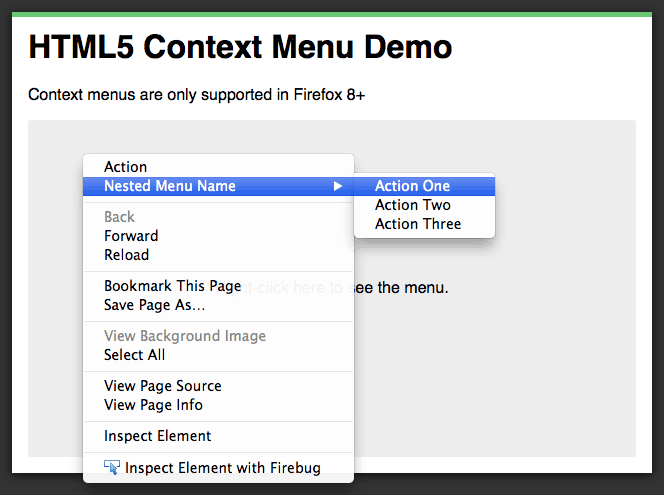
Nested Context Menus
<menu> elements within one another to
create more complex menu structures. This can be particularly handy if
you want to provide a large number of controls but don’t wish to clutter
up the main context menu.<menu type="context" id="menu">
<menuitem label="Action" onclick="..." icon="icon.png"></menuitem>
<!-- Nested Menu -->
<menu label="Nested Menu Name" icon="/path/to/icon.png">
<menuitem label="Action One" onclick="..."></menuitem>
<menuitem label="Action Two" onclick="..."></menuitem>
<menuitem label="Action Three" onclick="..."></menuitem>
</menu>
</menu>
<menu> elements should include a label attribute containing the text that will be displayed in the parent menu. You can also specify an icon attribute with a path to an image that will be displayed alongside the label.Context Menu Demo
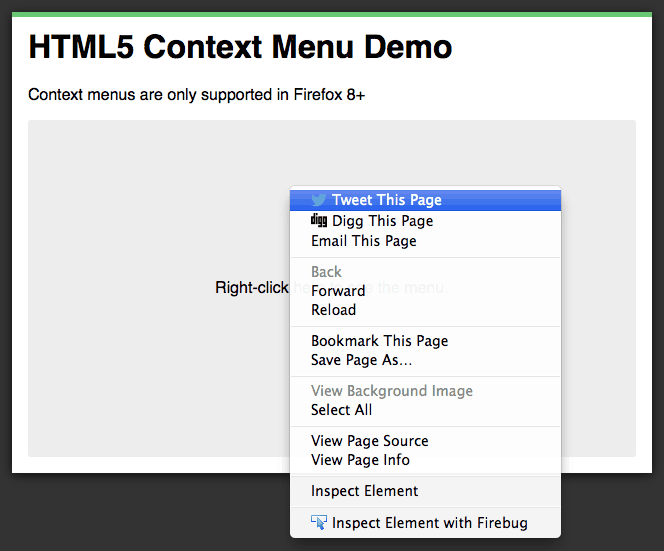
HTML5 Context Menus
<!-- Create the menu -->
<menu type="context" id="menu">
  <menuitem label="Tweet This Page" onclick="window.location=
'https://twitter.com/intent/tweet?text=' + document.title + ' ' + window.location.href;" icon="twitter.png"></menuitem>
<menuitem label="Digg This Page" onclick="window.location='http://digg.com/submit?url='+window.location;" icon="digg.png"></menuitem>
<menuitem label="Email This Page" onclick="window.location='mailto:?body='+window.location;"></menuitem>
</menu>
<div> element that will act as our click target for the menu.<!-- The target element that the menu is assigned to -->
<div id="target" contextmenu="menu">Right-click here to see the menu.</div>

No comments:
Post a Comment